Planning Pod can automatically link your email conversations to the correct Lead or Event, helping you keep communication organized and easy to access. While the process is designed to save you time, it’s helpful to understand how it works and what limitations to be aware of.
Below is an overview of how emails flow into Planning Pod, how auto-linking works, and important details to keep in mind.
Before Planning Pod can pull in your messages, you’ll need to connect your email address in your Email Communication Settings. Once connected, your emails will still arrive in your regular inbox first, and then a copy will be brought into your Planning Pod Communications inbox.
Planning Pod only brings in emails that belong to contacts stored in your Planning Pod account.
If the sender/recipient matches a contact in Planning Pod → the email will come in.
If the contact does not exist in your account → the email will not be imported.
This helps ensure your inbox stays focused on client and event-related communication.
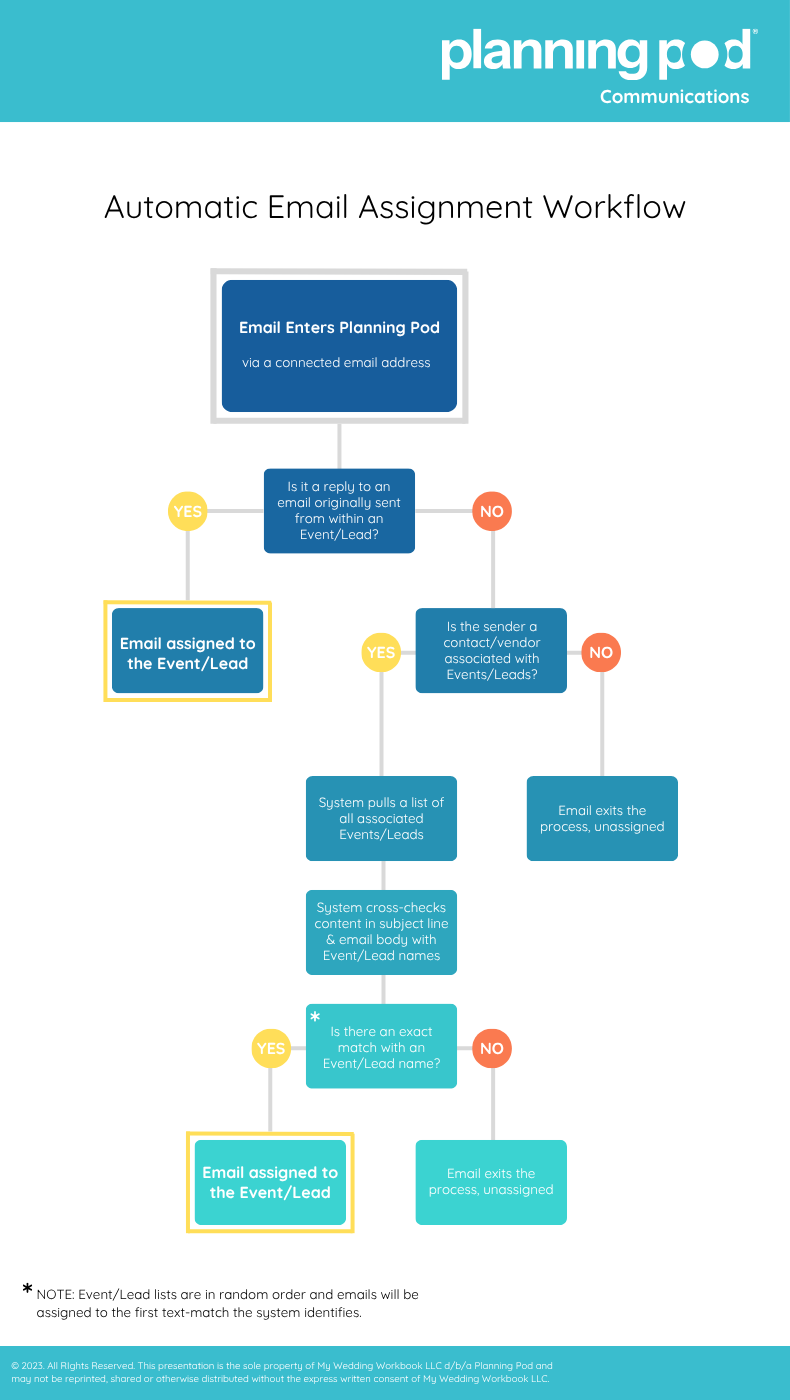
When an email comes in, the system reviews:
The contact’s email address
Any mention of the Lead or Event name in the message
If a match is found, the email will automatically link to that Lead or Event. If no clear match is found, the email will remain unlinked, and you can manually assign it.
If your leads or events have very broad names (e.g., “Wedding”), Planning Pod may have difficulty determining the correct match.
For example, any email containing the word “wedding” could be linked to that lead/event.
Using more specific Lead/Event names (e.g., “Smith-Jones Wedding 2025”) greatly improves accuracy.
There may be times when an email is linked to the wrong Lead or Event. If this happens, you can fix it:
Go to your main Communications tab
Locate the email
Unlink it
Then relink it to the correct Lead or Event
This gives you full control even when the system gets it wrong.
There are certain situations where a manually linked email may not stay linked when a client replies. This most commonly happens based on how the original email was sent.
Here’s what’s happening behind the scenes:
You send an email using the Communications email address (Communications@planningpod.com).
You then manually link that sent email to a specific Lead or Event.
When your client replies, the reply-to address switches to your connected email address.
The reply is brought back into Planning Pod — but it appears unlinked.
This happens because the original message and the reply travel through two different email addresses. That change breaks the original thread connection, so Planning Pod treats the reply as a new email and runs it through the standard auto-linking process again.
If the system can clearly determine where the email belongs, it may auto-link. If not, you’ll simply need to link it manually.
If you want to keep an email thread continuously linked to the same Lead or Event:
Send the message from your connected email address inside Planning Pod (not the Communications email address).
When you do this:
The email stays within the same thread
Replies come back already linked
No re-linking is needed
This works because the email does not need to transfer between addresses to be brought into Planning Pod, allowing the system to maintain the original connection.
Turn Off Auto-Linking if Needed:
You can temporarily disable the auto-link feature in your Email Communication Settings. This is helpful if you want to clean up your inbox first or prefer to manually link messages as they come in.
Rename Leads/Events for Better Accuracy:
More detailed event names help the system match emails correctly.
Send Emails From Within the Lead/Event:
When you send emails from the Communications tab inside a Lead or Event, they automatically thread and link correctly—no guesswork needed.
To learn more, please review this infographic to see how the system determines it's course of action when it come to bringing in and linking emails:
If you have any additional questions, please reach out to support@planningpod.com
